Best Photo for an AI Talking Pet Video
The photo you start with matters more than any setting in the tool. An AI talking pet video can only move the face it is given, so a clear, well-lit portrait produces a far more convincing result than a blurry snapshot.
By PetTalk AI · Published September 22, 2026 · Updated September 22, 2026

Resolution: bigger is safer
Give the animation as much detail as possible. A sharp image of around 1000 pixels on the short side gives the model real features to work with. Heavy compression and tiny thumbnails lose the fur, the eye highlights, and the edge of the mouth, so the mouth movement has to invent detail that was never there. If you only have a small image, upscale gently but remember that a rescanned blurry photo stays blurry.
Lighting: soft, even, and in front
The single biggest factor after sharpness. You want light falling on the face from the front, ideally from a window or a soft source. Even light keeps both eyes, the nose, and the mouth readable. Backlighting turns the face into a silhouette, while a single hard light creates deep shadows on one side that the animation reads as missing detail.
Quick fixes for bad light
- Move the pet to face a bright window during the day.
- Turn off the harsh overhead lamp and add a second soft source from the side.
- Avoid flash directly into the eyes, which flattens features and creates a red or white glare.
Angle: level with the eyes
Get the camera down to your pet's eye level rather than shooting from above. A level angle shows the natural shape of the muzzle, which is what the animation needs to move. Extreme angles from way above or below distort the head and make the result look strange.
Expression: relaxed and forward-facing
A calm, alert, slightly neutral expression animates best. A mouth that is closed or only slightly open gives the effect room to work; a wide yawn or a tongue mid-lick can look odd when speech is added over it. Eyes looking toward the camera also help the clip feel like the animal is addressing the viewer directly.
Background and obstructions
A plain, uncluttered background keeps attention on the face. More importantly, remove anything crossing the head: a hand, a leash, a sofa arm, a chew toy, or another animal. The tool has to find and track one face, and an obstruction makes that guesswork. One pet per photo is the simplest rule.
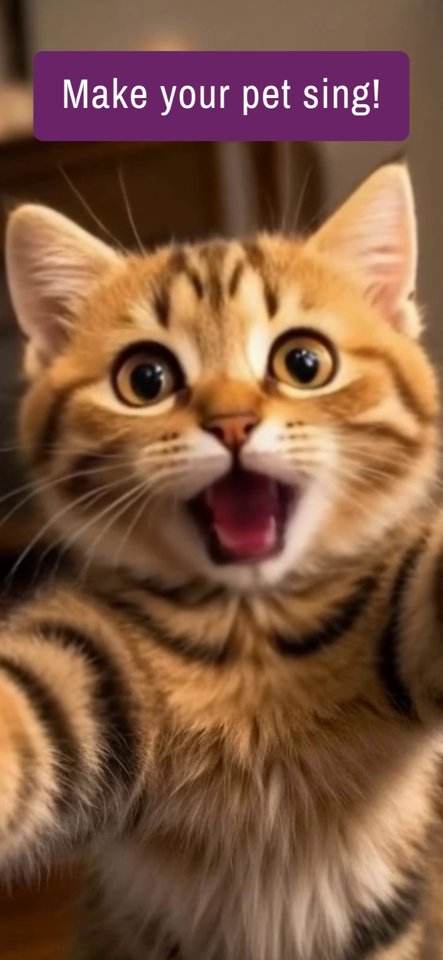
Good shots versus bad shots
Good
- A close head-and-chest portrait, eyes level, face evenly lit.
- One animal, no overlapping people or objects.
- Sharp focus on the eyes and a simple background.
Bad
- A tiny pet far away in a wide landscape shot.
- A dark room shot with a bright window behind the animal.
- Several animals crowded together, or a face half-hidden behind a paw.
How to retake a better photo with a phone
- Crouch or sit so the camera is level with your pet's eyes.
- Position your pet facing a window and turn on the room light behind you, not behind them.
- Tap the eyes on screen to lock focus, and hold still for a beat.
- Move close enough that the head fills at least half the frame.
- Take five or six shots and pick the sharpest one, not the first.
- Ask a helper to hold a treat near the lens so the eyes look forward.
A reliable photo also happens to make a better AI pet photo, so it is worth taking the extra minute. Once you have a keeper, use it in the talking pet video tool.
Make a talking pet video from your photo
Related guides
- How to make a cat talk with AI, step by step
- Turning a dog photo into a talking dog video
- Ideas for AI pet portraits from a good photo
- Animate a pet photo with gentle motion
Try it with your own pet
Upload one photo and make a talking pet video in the PetTalk AI Studio.
Open the Studio — free