How to Make a Cat Talk With AI (Step by Step)
Cats do exactly what they want, which is exactly why a talking cat video lands so well. With one clear photo and a short voice clip, you can have your cat appear to deliver a line — no editing timeline, no app install, no experience needed.
By PetTalk AI · Published September 22, 2026 · Updated September 22, 2026
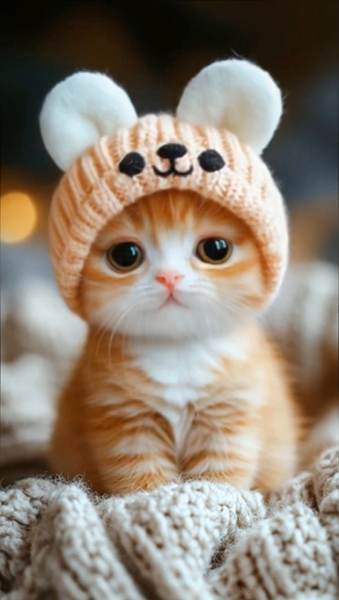
Why cats are such good talking subjects
Cats are naturally expressive without seeming to try. The ears swivel, the whiskers twitch, and the resting stare looks permanently unimpressed. That flat expression is a gift: when a cat "says" something dramatic or rude, the contrast does most of the comedy for you. A dog delivering the same line feels eager; a cat delivering it feels like a verdict.
One thing to set straight before you begin. This is a creative animation effect, not a real cat translator. The tool moves the mouth and face so the still photo matches your audio. It is not decoding meows, reading your cat's mind, or producing a genuine translation. Think of it as a puppet show built from a photograph.
Step 1: pick the right cat photo
The photo decides most of the result. You want one cat, facing the camera, with the eyes and mouth area clearly visible.
Photos that work
- A front-facing head-and-shoulders shot in soft, even light.
- One cat only, with no other animal or person overlapping the face.
- Sharp focus on the eyes and muzzle, even if the background is a little soft.
- A calm or mildly annoyed expression — both animate well.
Photos that cause trouble
- Very dark or backlit shots, where the face is mostly shadow.
- Action photos with heavy motion blur.
- Two or more cats, which makes the animation guess which face to move.
- A face hidden behind a paw, a toy, a curtain, or a bowl.
Step 2: write a line short enough to land
Six to fifteen words is the sweet spot. Long paragraphs feel slow because the animation has to keep up with every syllable. Try a single opinion ("I have reviewed the food and I reject it"), a fake apology ("Sorry I knocked the glass off the table. I would do it again"), or a deadpan compliment about the human.
Write the line the way you actually speak. Contractions and short pauses sound more natural than formal sentences, and they give the mouth movement somewhere to breathe.
Step 3: record the voice clearly
Record in a quiet room, close to the microphone, at a normal conversational pace. Rushing makes the animation look frantic; speaking too slowly can look stiff. If you want a different character, a slightly bored or theatrical delivery suits a cat better than an excited one. You can record a fresh take or upload an existing clip.
Step 4: generate, watch, and adjust
Upload the photo, add the audio, and generate. Watch the result once without judging it, then look at the mouth and jaw. If the sync drifts or the face looks odd, the fix is almost always a brighter, closer, sharper photo — not a longer script.
Common mistakes to avoid
- Dark photo. Low light flattens the face and makes the animation look uncanny.
- Multiple cats. The tool needs one clear subject to track.
- Long audio. A 30-second monologue is harder to enjoy than a 6-second punchline.
- Noisy room. Background hum and echo pull attention away from the joke.
- Over-editing. One good idea per clip beats five effects stacked together.
Ideas for your first talking cat video
Send a fake complaint to a partner about who feeds the cat. Record a "review" of a new toy or a vet visit. Make a birthday greeting where the cat delivers the message itself. Or pair a calm cat face with a genuinely mundane line about napping, which tends to be the version people share most.
Ready to try it? Use one clear cat photo and keep the line short — the same rules apply to the talking cat video generator and to talking animals more broadly.
Make a talking cat video — free
Related guides
- How to make a talking dog video from a photo
- Choosing the best photo for a talking pet video
- Animating a pet photo with motion instead of speech
- Making a pet birthday video
Try it with your own pet
Upload one photo and make a talking pet video in the PetTalk AI Studio.
Open the Studio — free